How do you invite new users to your organization?
Learn how to grant access to your vendor profile by inviting new team members through the Tailorbird platform. This guide provides a quick walkthrough of the steps needed to send invitations to new users via the vendor management dashboard.
Written By Susy Lozoya
Last updated 3 days ago
1. You can invite as many users as needed to your organization. Each user will receive an email invitation to join Tailorbird, so make sure to let them know to check their Spam or Junk folder if they don’t see the invitation in their inbox.
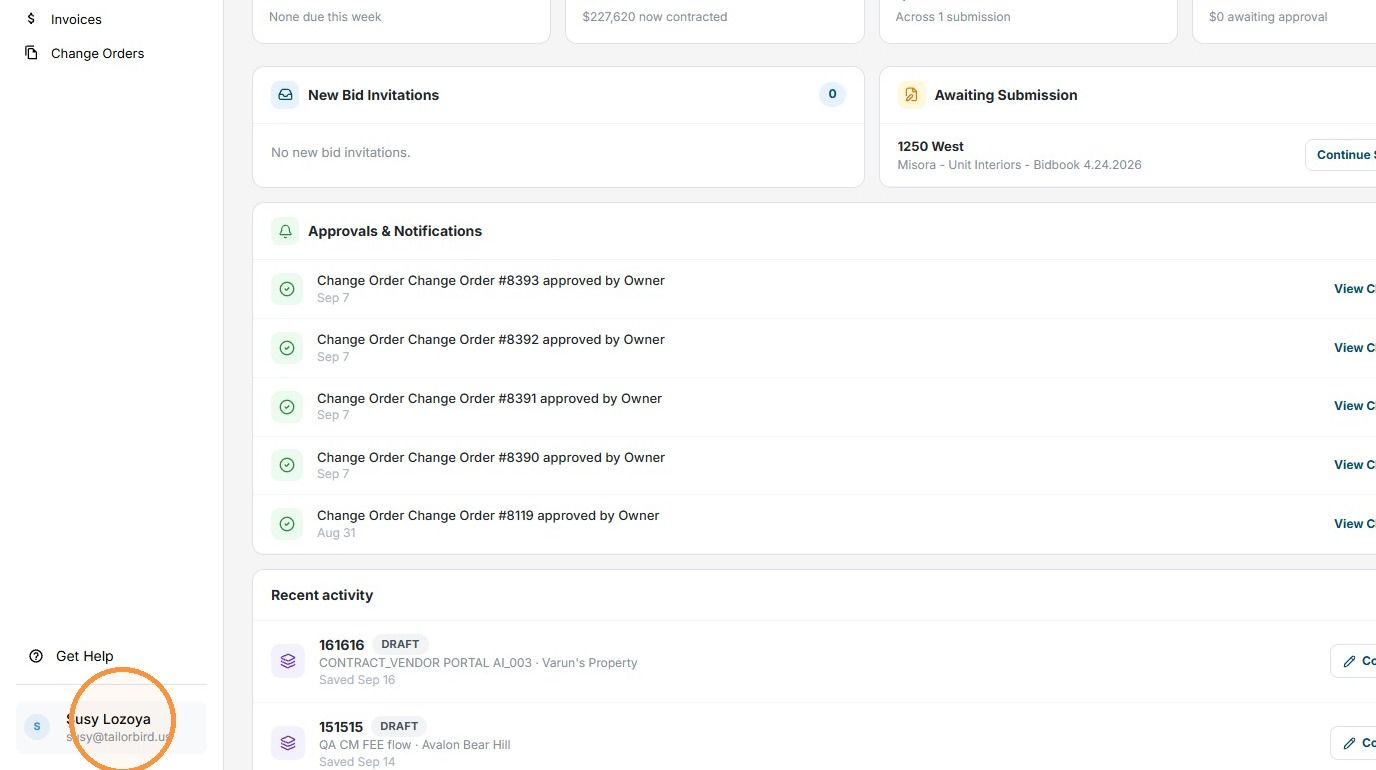
2. Click on the bottom-left corner of the screen, where you’ll see a tab with your username.
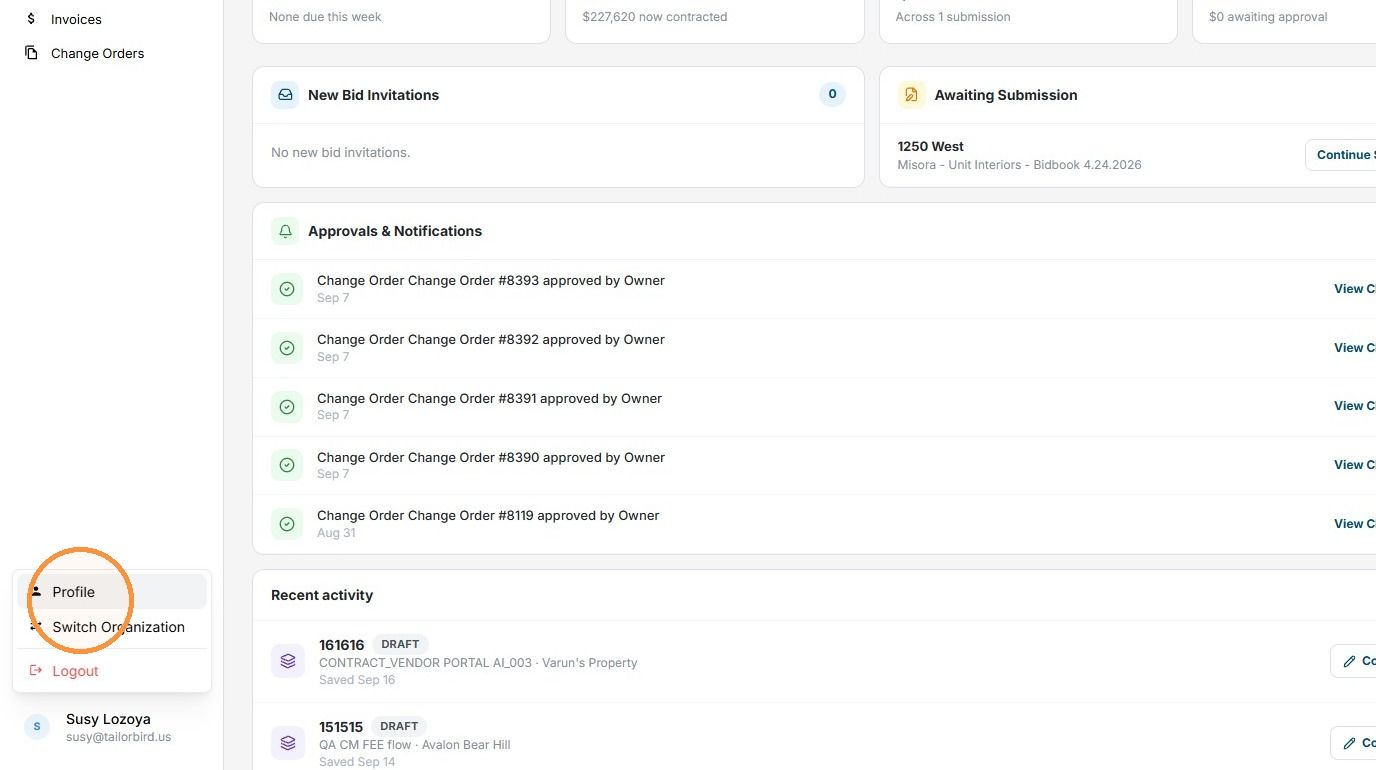
3. Click "Profile"
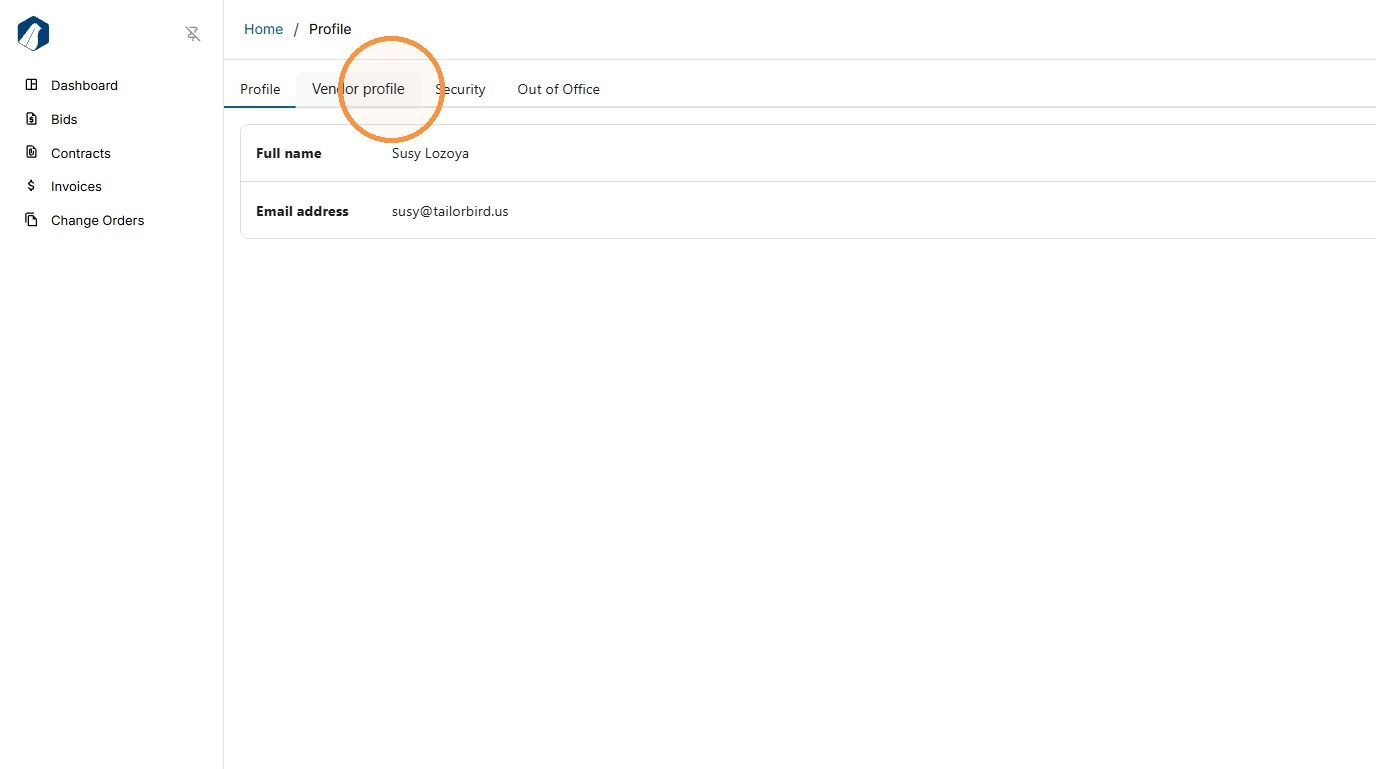
4. Click "Vendor profile"
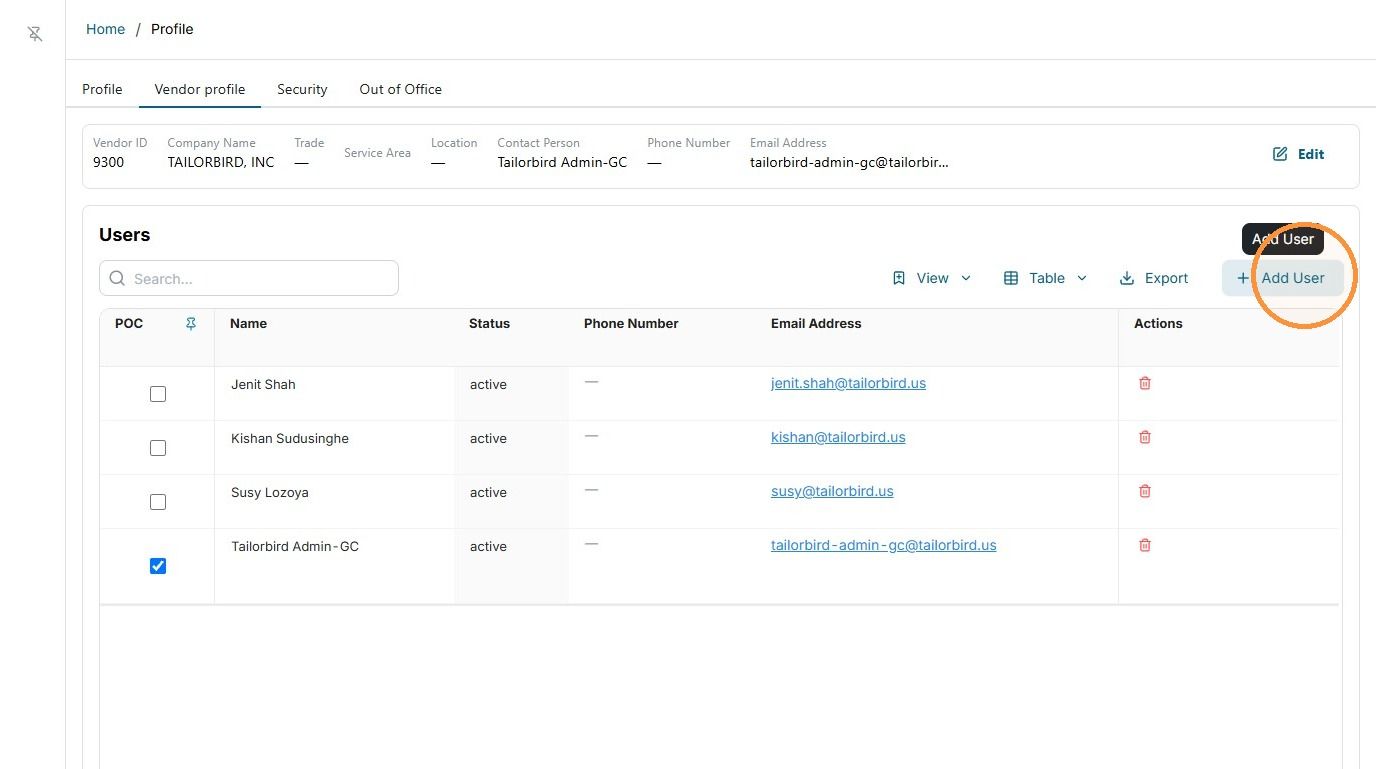
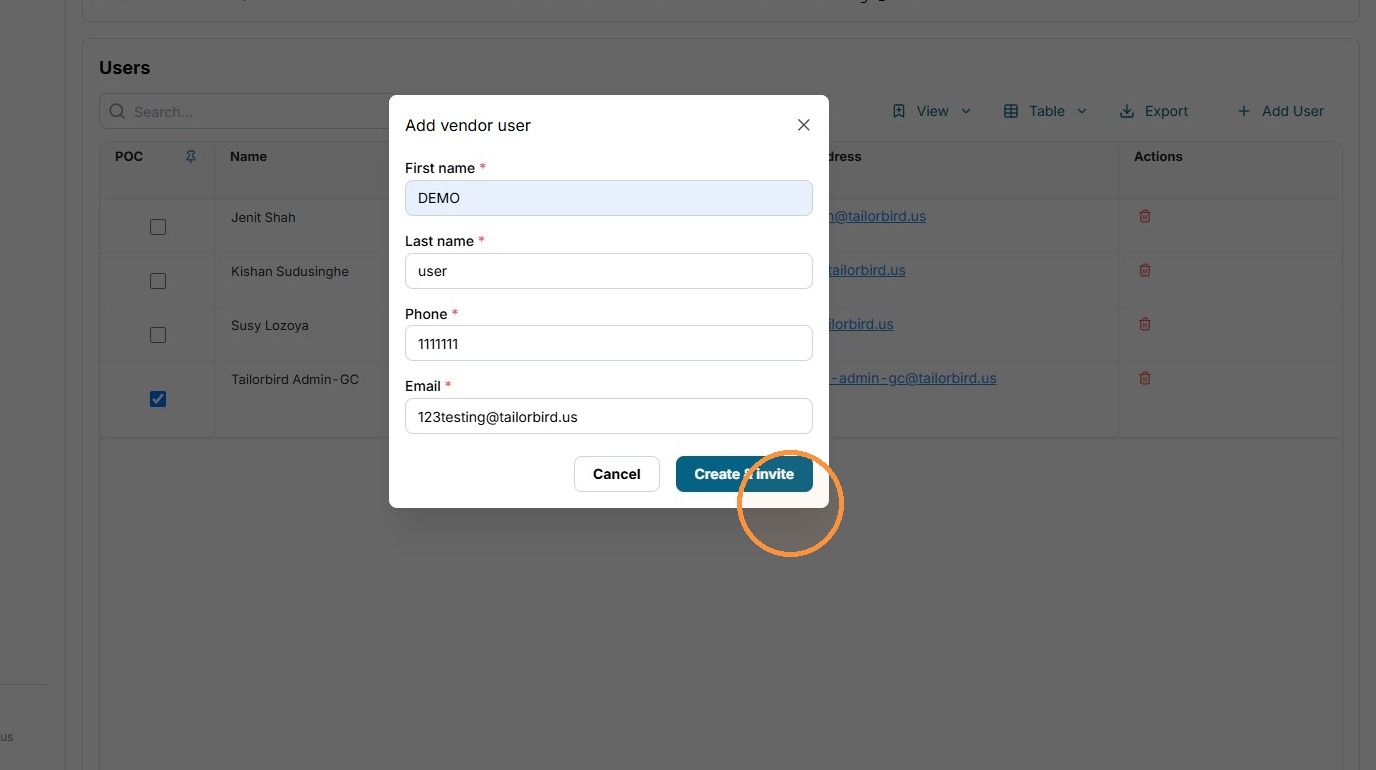
5. In this dashboard, you’ll be able to see all active users in your organization. To add a new user, simply click Add User.
6. Complete all the required fields for the new user you’re adding. Once you’ve entered all the necessary information, click Create & Invite. The invitation will be automatically sent to the user.
7. Keep in mind that for users to interact with Tailorbird and receive the appropriate notifications, their status must be shown as Active in the dashboard.
If a user’s status is shown as Pending, it means they haven’t logged in and activated their Tailorbird account yet. Please follow up with the user internally to make sure they complete the activation process and appear as Active in the dashboard.
Still need help? Ask the team