How to Submit a Bid?
Learn how to efficiently upload your project documentation and finalize your bid submission through the Tailorbird platform. This guide provides a quick walkthrough to ensure your files are correctly submitted for review.
Written By Susy Lozoya
Last updated 3 days ago
Submit bid
1. Once you’ve reviewed the Bidbook scope and the information provided by the owner, along with the property details, you’re ready to submit your bid.
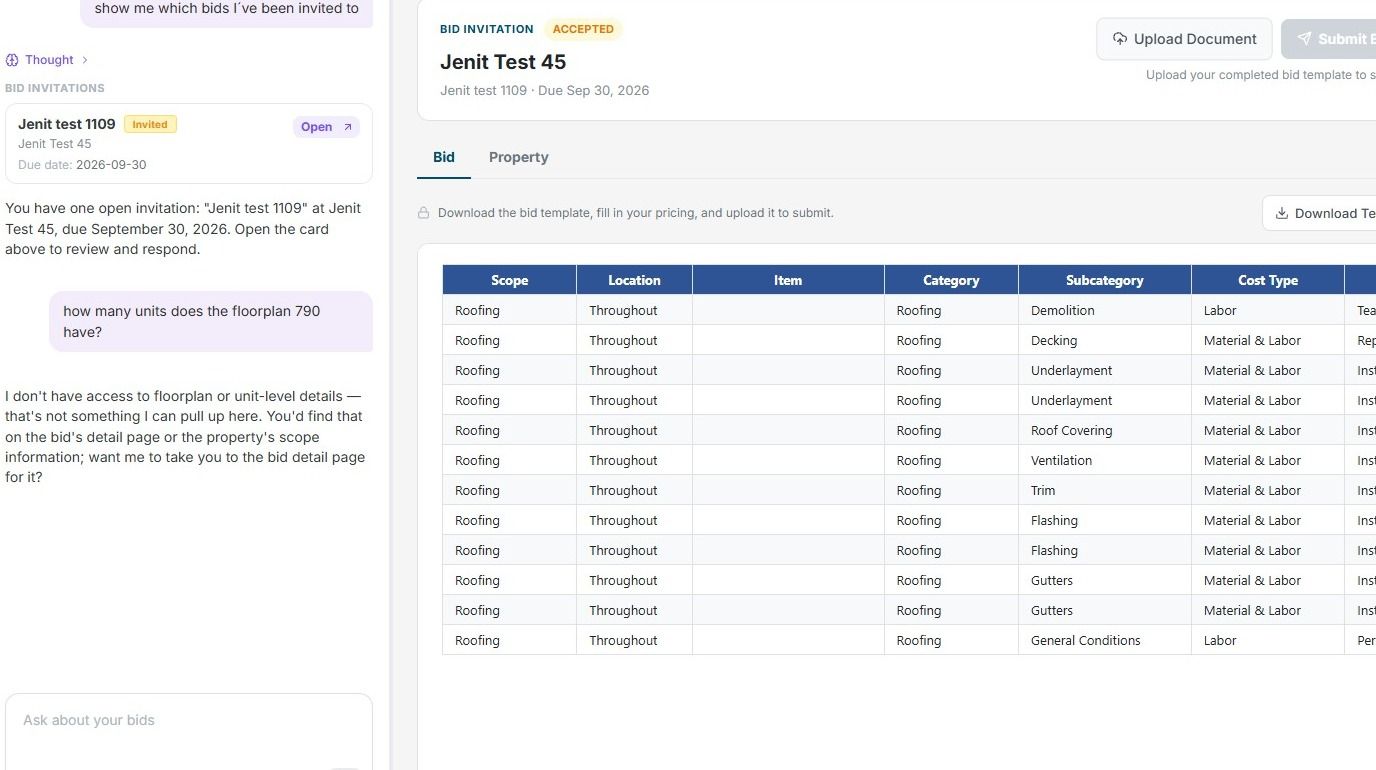
2. Click "Upload Document"
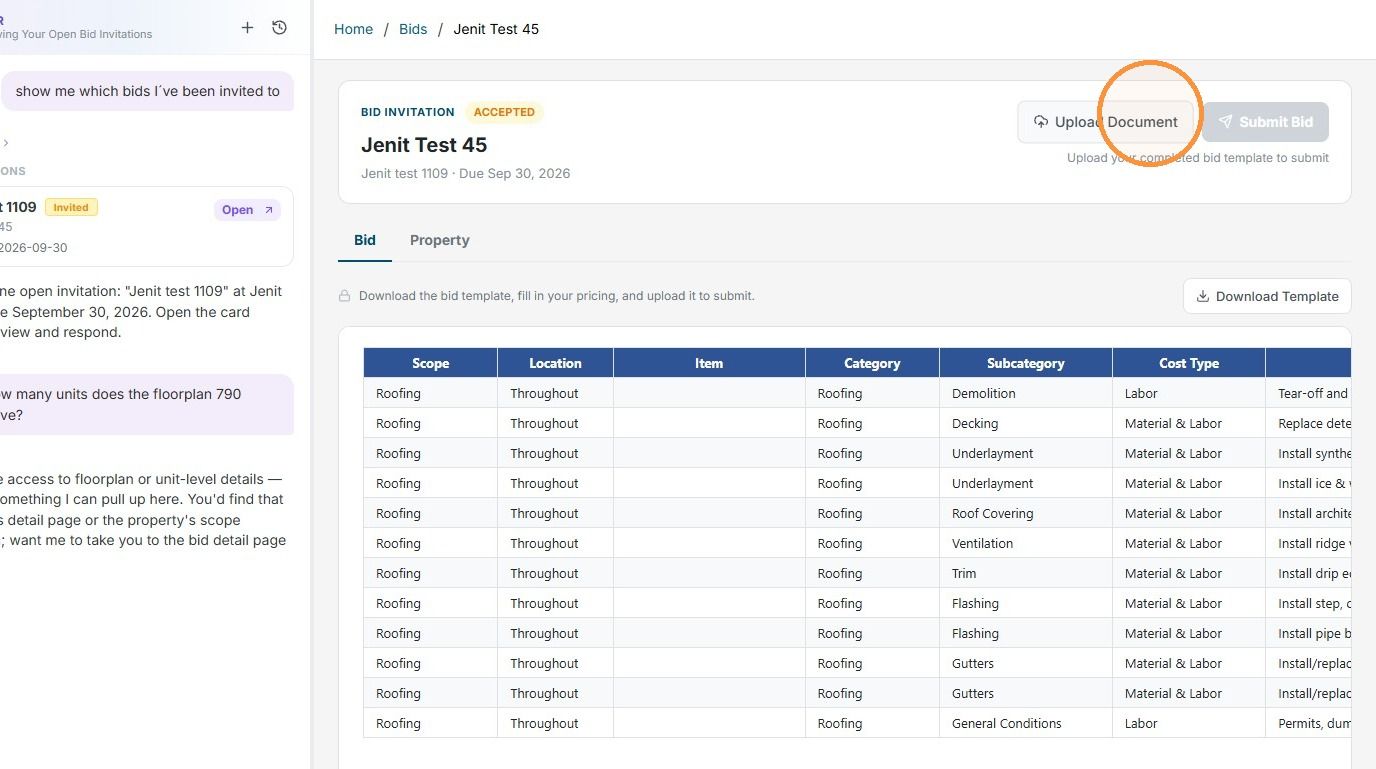
3. Click “Drop file here” to upload your bid.
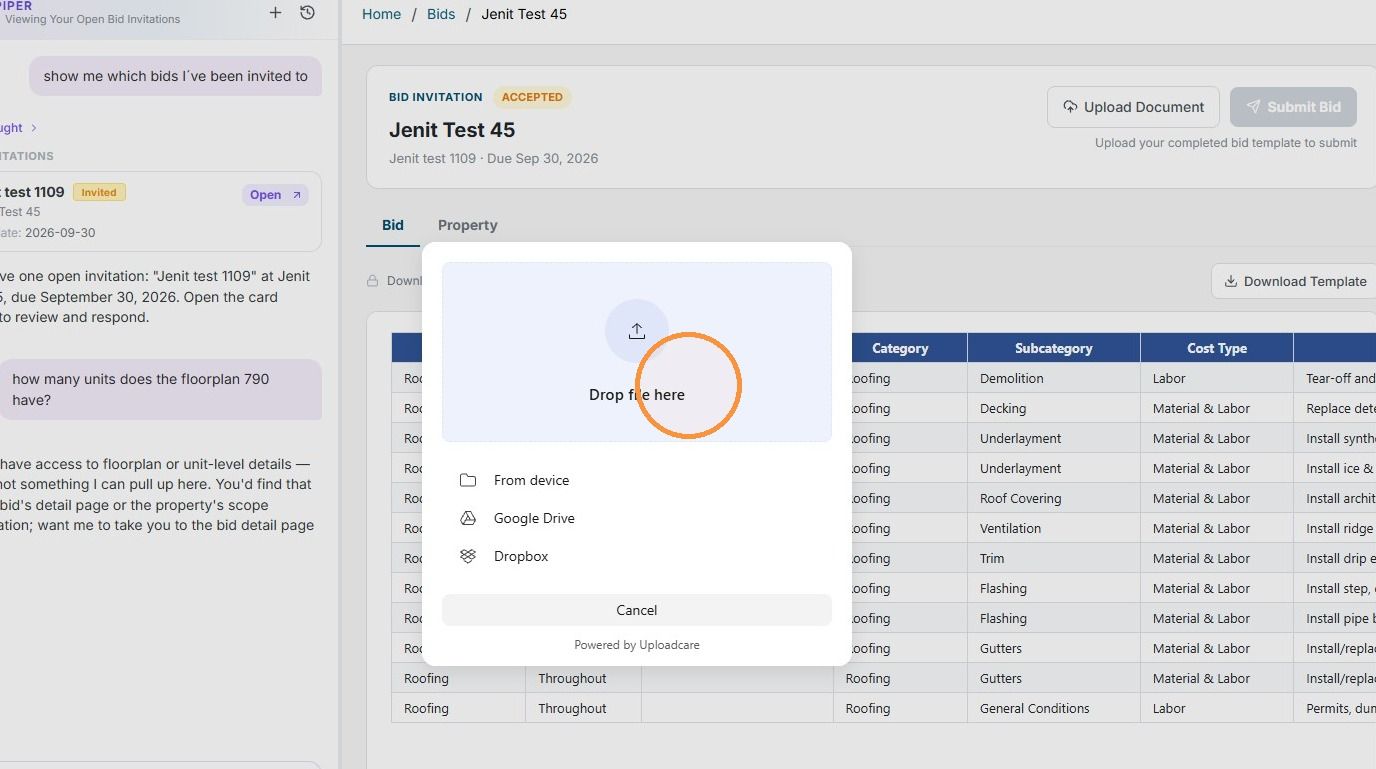
4. Click "Done"
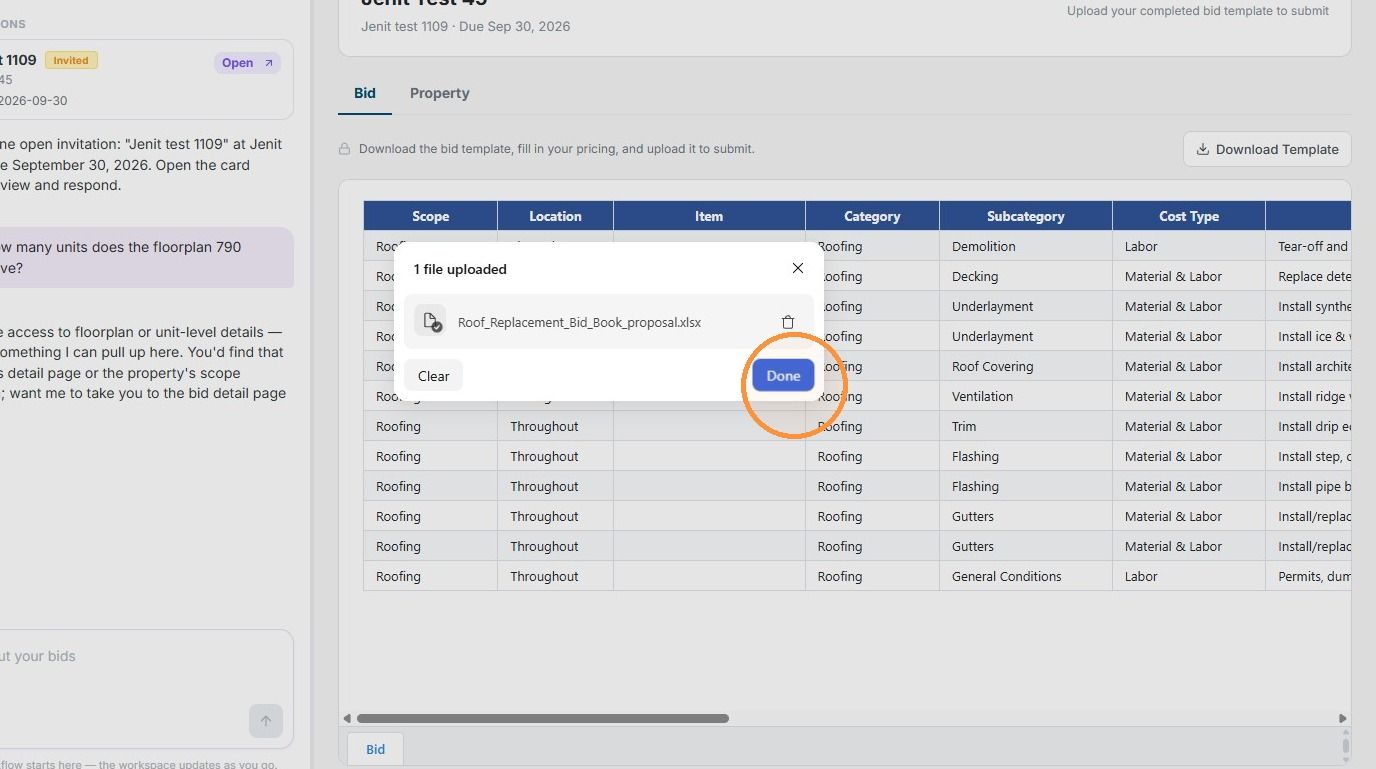
5. Once you’re sure you’ve uploaded your proposal with all the necessary information and pricing, click “Submit Bid.”
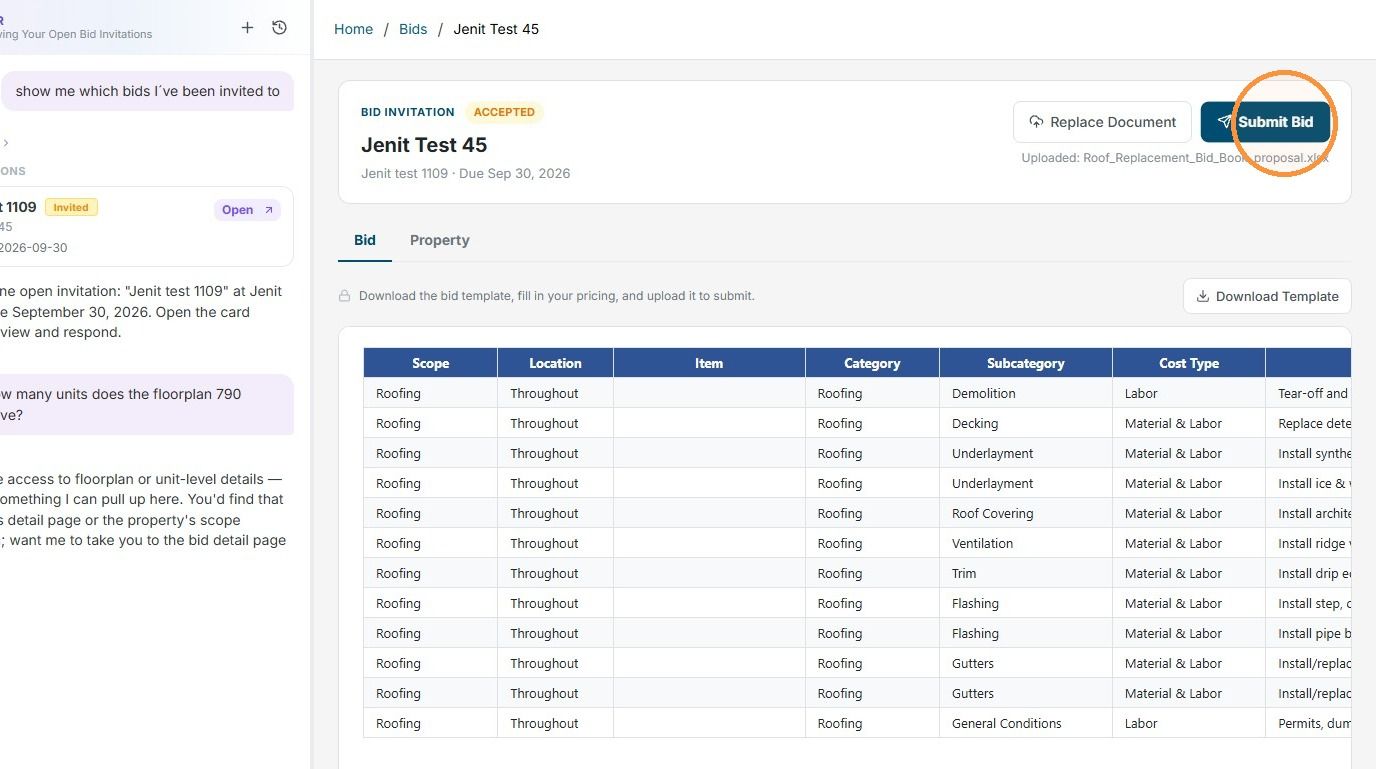
6. You’ll notice that the status has been updated to “Submitted.” Your bid has now been successfully sent to the owner for review and internal decision-making.
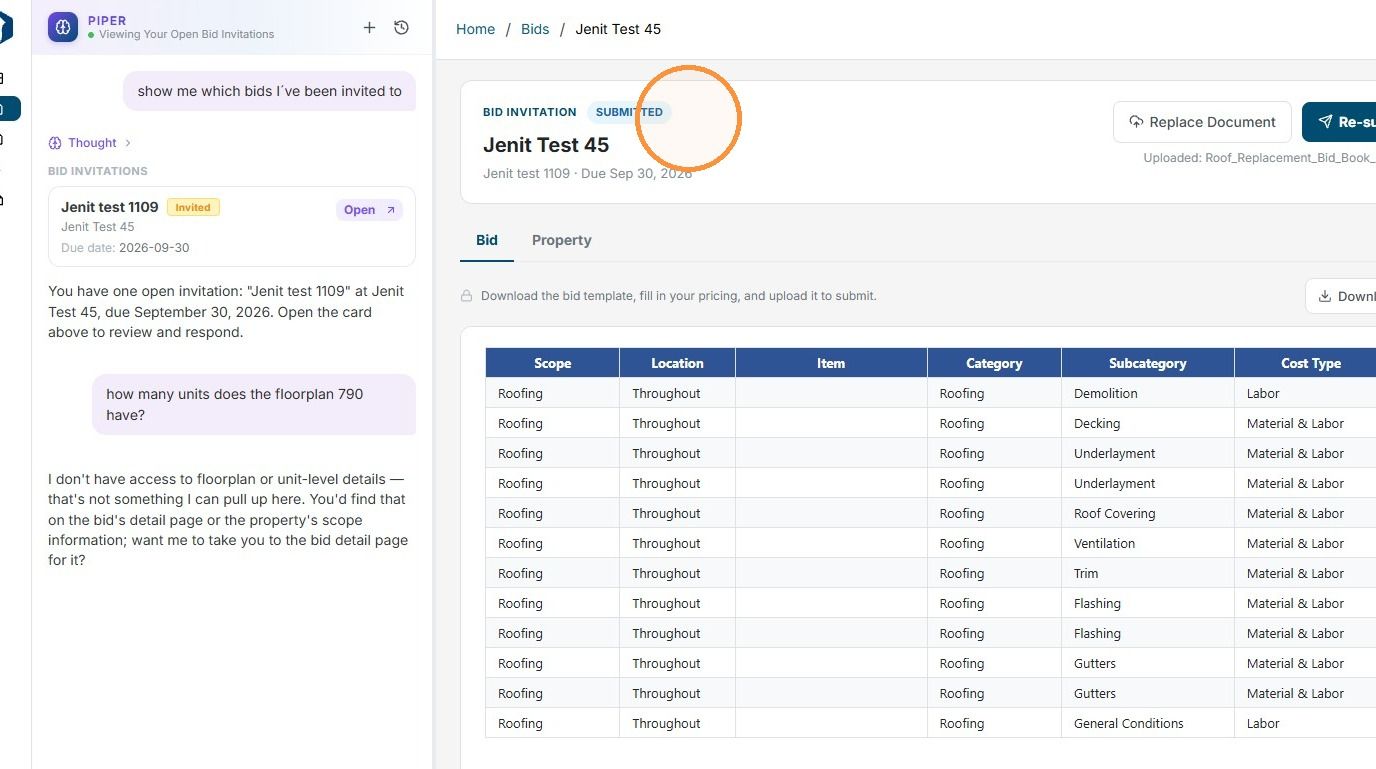
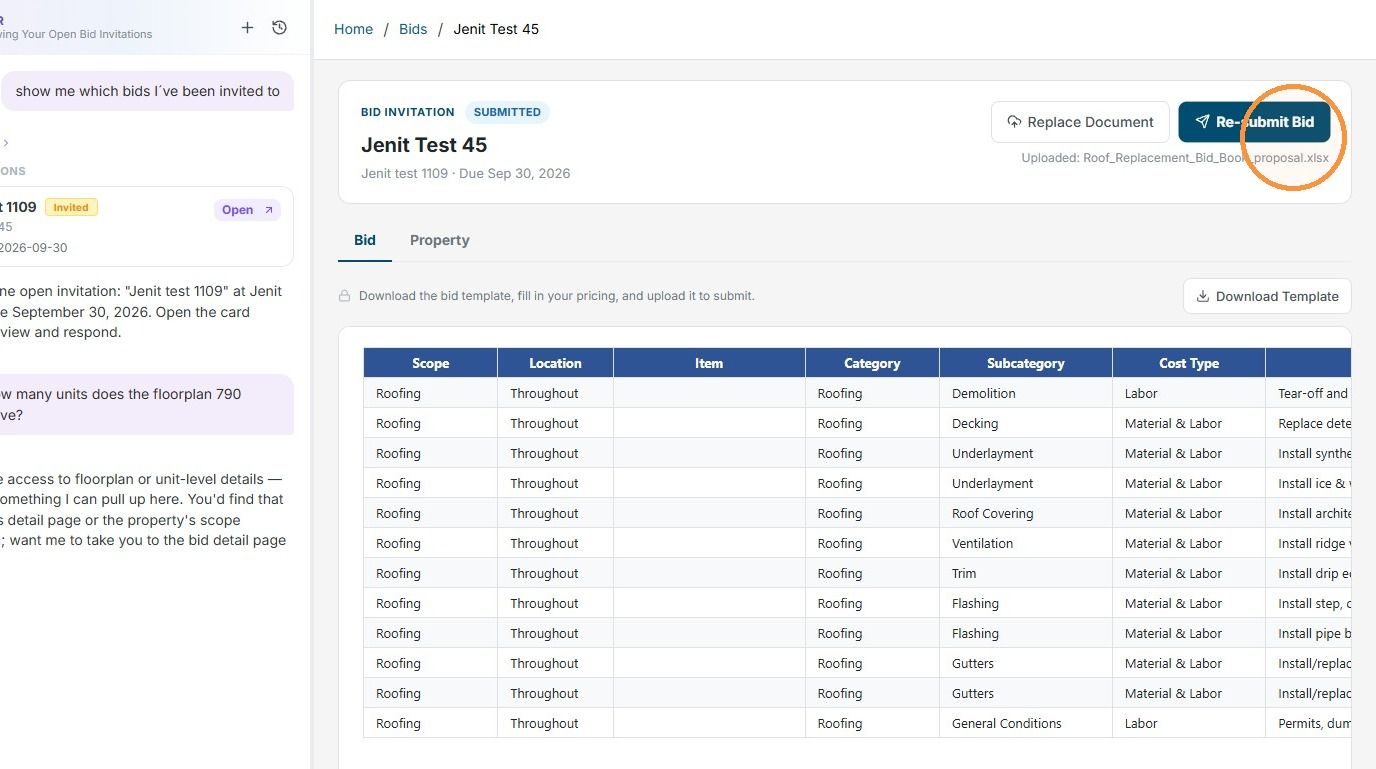
Re-submit Bid
7. In some cases, the owner may ask you to review your pricing and submit your best pricing, provide an updated scope for consideration, or request improvements to your proposal for internal purposes.
Once your initial bid has been submitted, you can still re-submit your bid with the updated pricing, scope, or proposal.
Click “Re-submit Bid” to upload your updated proposal.
Please make sure to notify the owner’s point of contact whenever you re-submit your bid. The owner will also be able to see from their side that your bid has been re-submitted.
Still need help? Ask the team