How to View and Manage your Contracts?
Learn how to view and manage your active contracts, review key contract details and financial information, track invoices and change orders, and use Piper to quickly find specific contracts or get an overview of your contracts.
Written By Susy Lozoya
Last updated 3 days ago
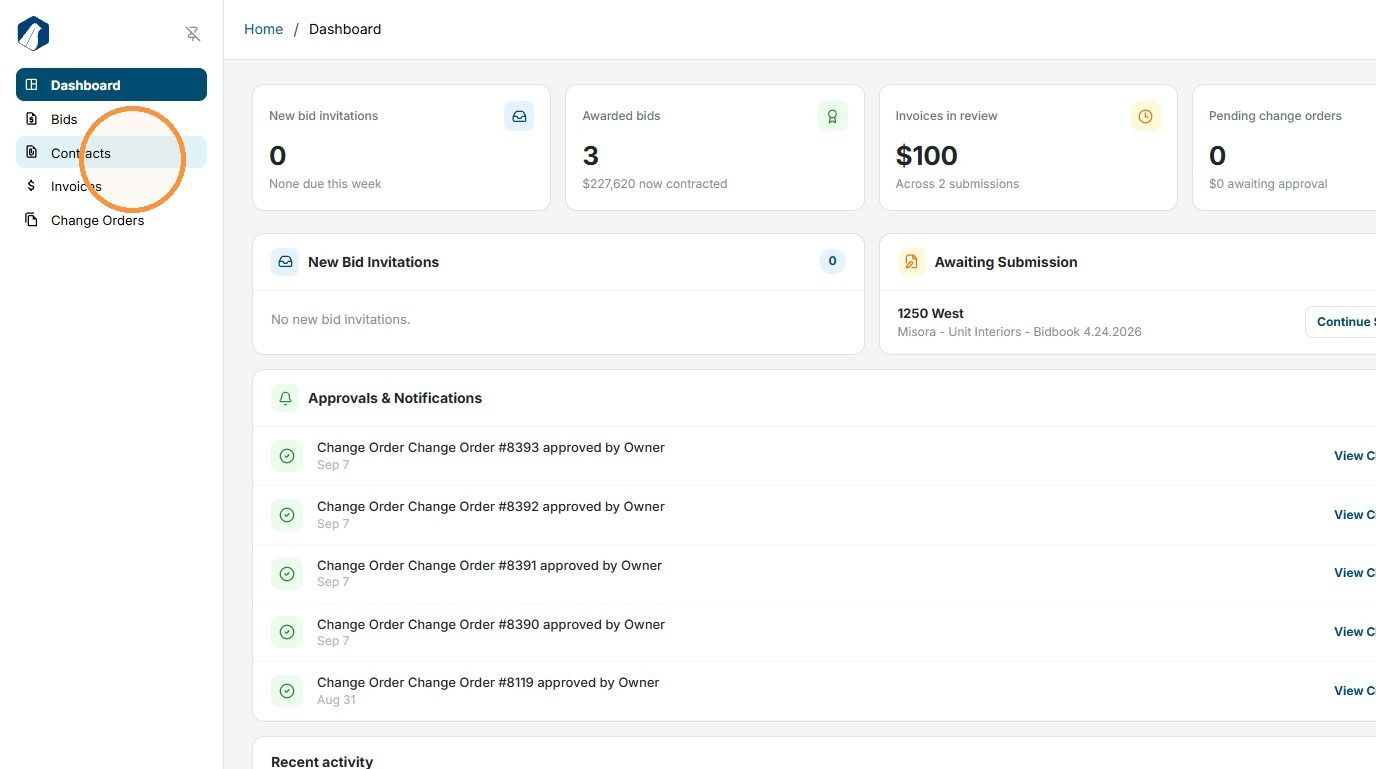
1. Use the Contracts section to view and manage the contracts you’re currently assigned to. You can review the customer, contract status, and contract amount for each contract.
2. Click Contracts
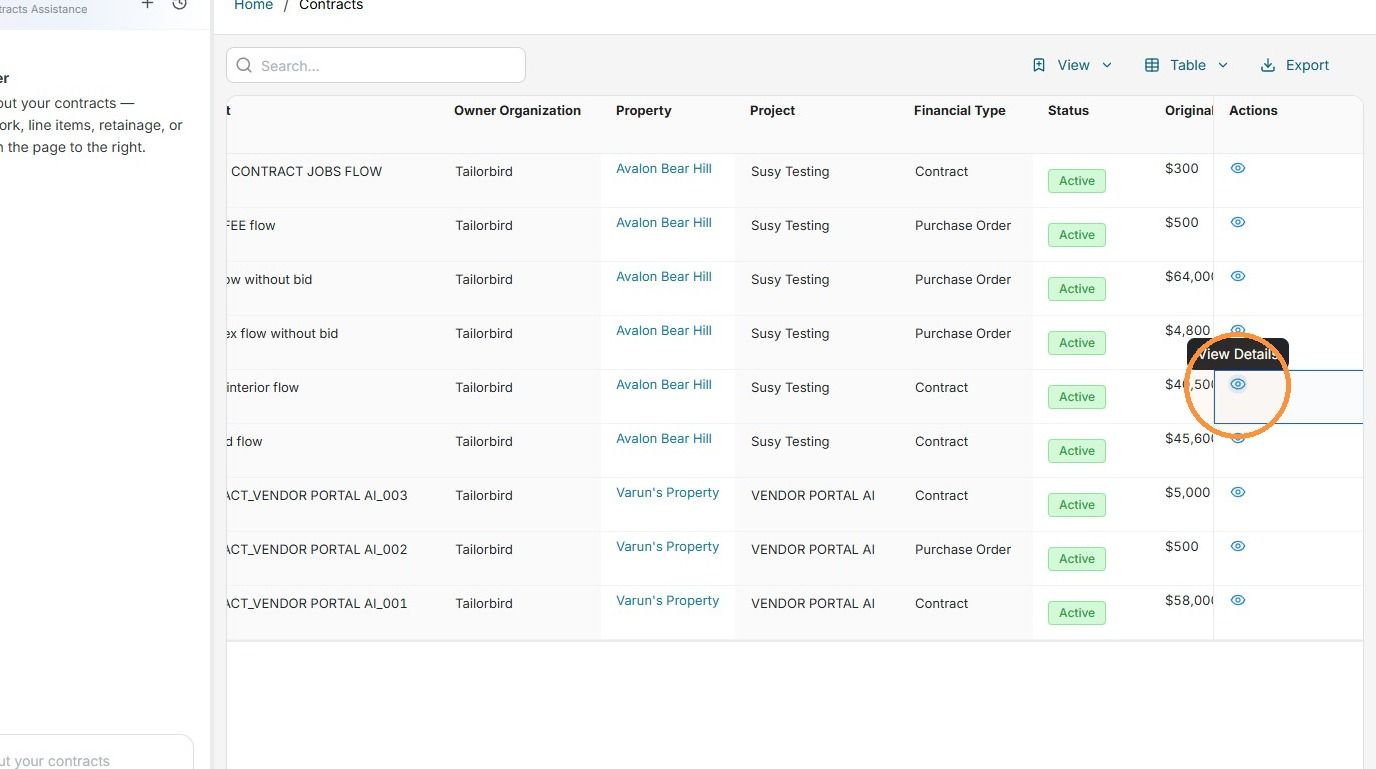
3. In the dashboard, you’ll see key contract details, including the customer, property, financial type, linked project, contract amount, invoice amount, and change order amount.
To open a contract and view more details, click the View Details icon on the right side.
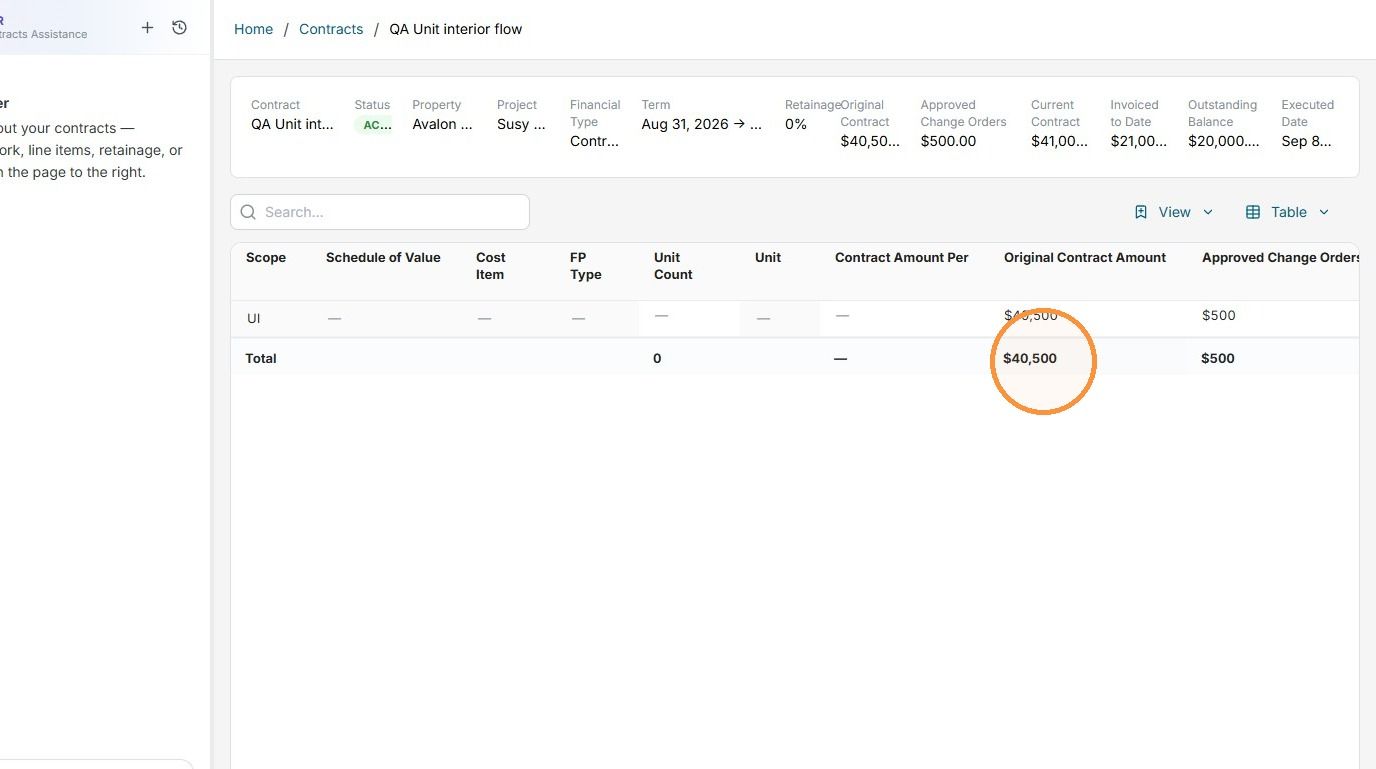
4. Once you open a contract, you’ll be able to review its details, including the scope(s), contract amount, unit count or specific unit for unit interior contracts, as well as the invoice and change order amounts submitted for the contract.
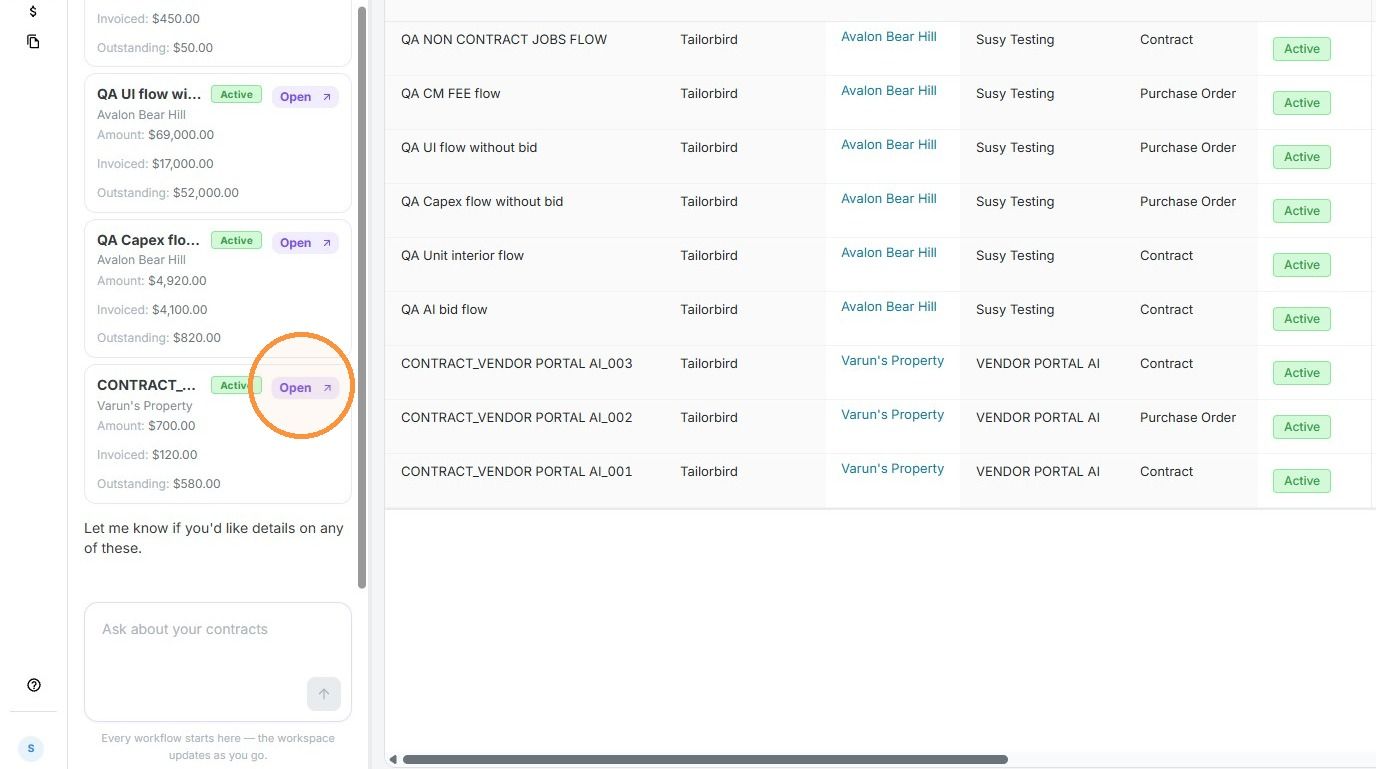
5. You can also use Piper, our AI agent, to quickly locate a specific contract or get an overview of your contracts, such as the number of purchase orders versus contracts.
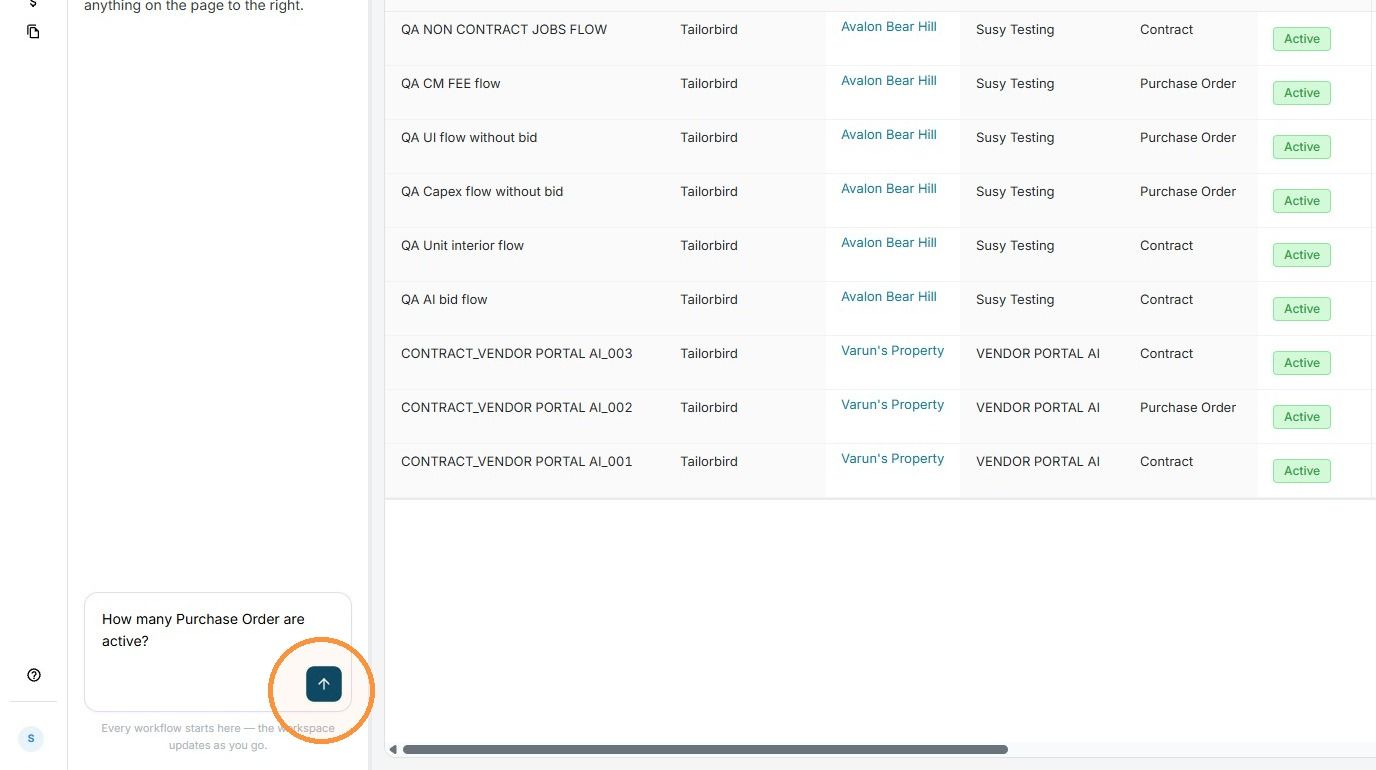
6. Piper will provide the requested information and include a direct link to open the relevant contract, just click "Open".
Still need help? Ask the team