How to use Piper across the Contracts, Invoices, Change Orders & Bids modules?
Learn how to effectively use our AI agent, Piper, across different modules to quickly review, manage, and take action on your tasks with greater efficiency.
Written By Susy Lozoya
Last updated 3 days ago
1. Piper, our AI agent, can assist you across the different modules available to help you find information and manage your tasks more efficiently. You can access the Piper chat from the left side of your screen.
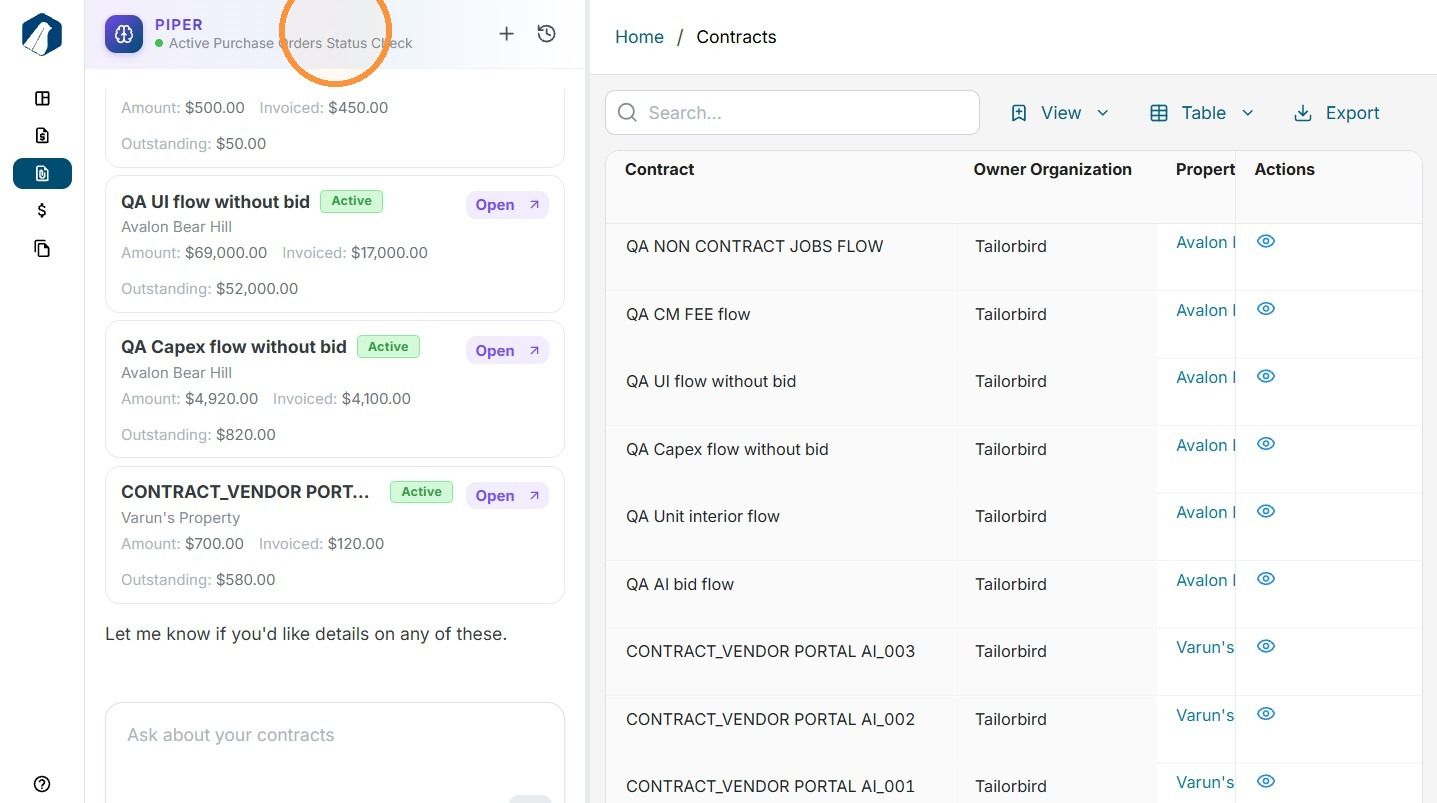
2. Keep in mind that Piper’s responses are limited to the information available in these records. It may not be able to answer property-specific questions, provide a customer-side point of contact (POC), or respond to requests that require information outside of contracts, bids, invoices, and change orders.
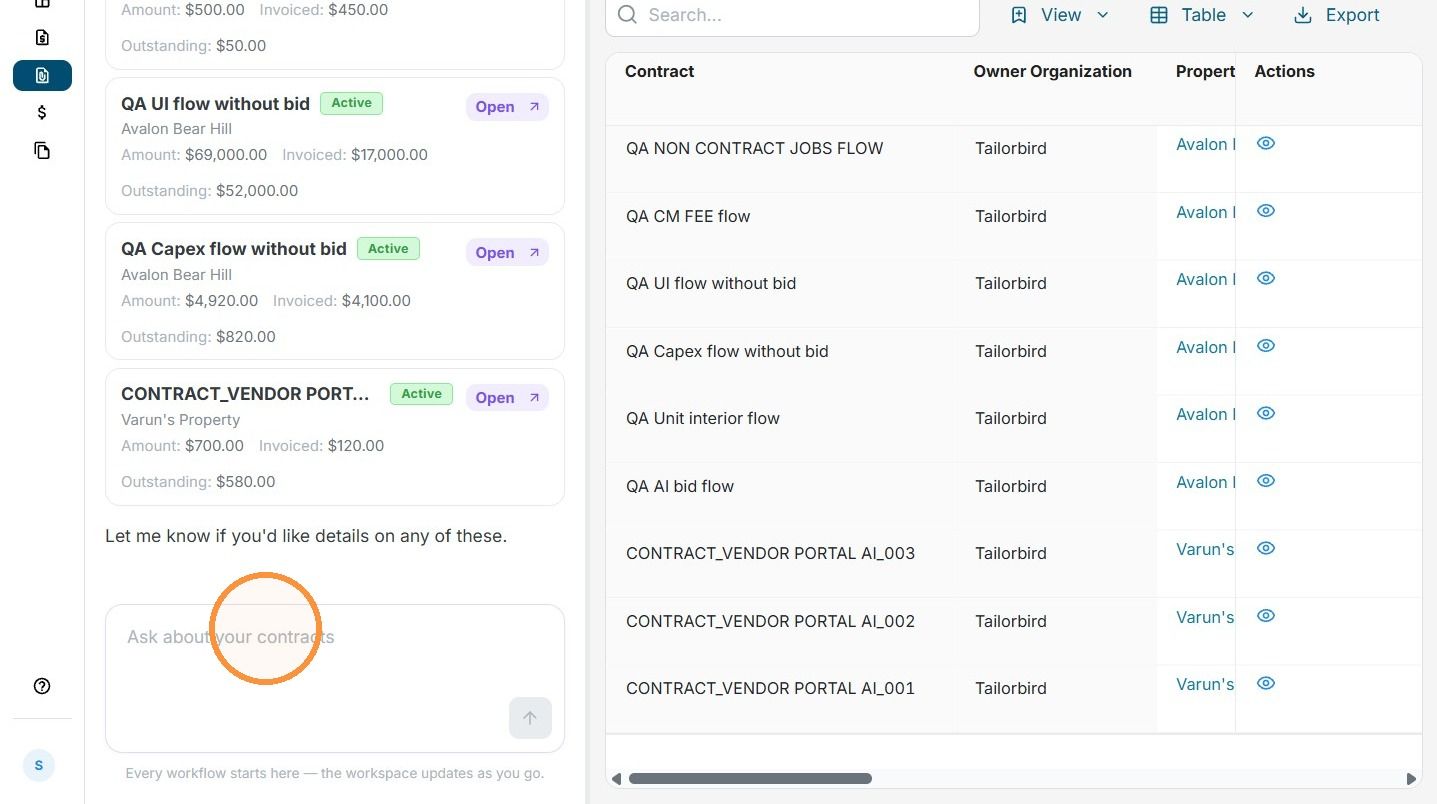
3. At the bottom of the chat, you’ll find the message box where you can enter the request you need assistance with. Piper can help with tasks related to the data available in your records, including contracts, invoices, change orders, and bids assigned to or managed by you.
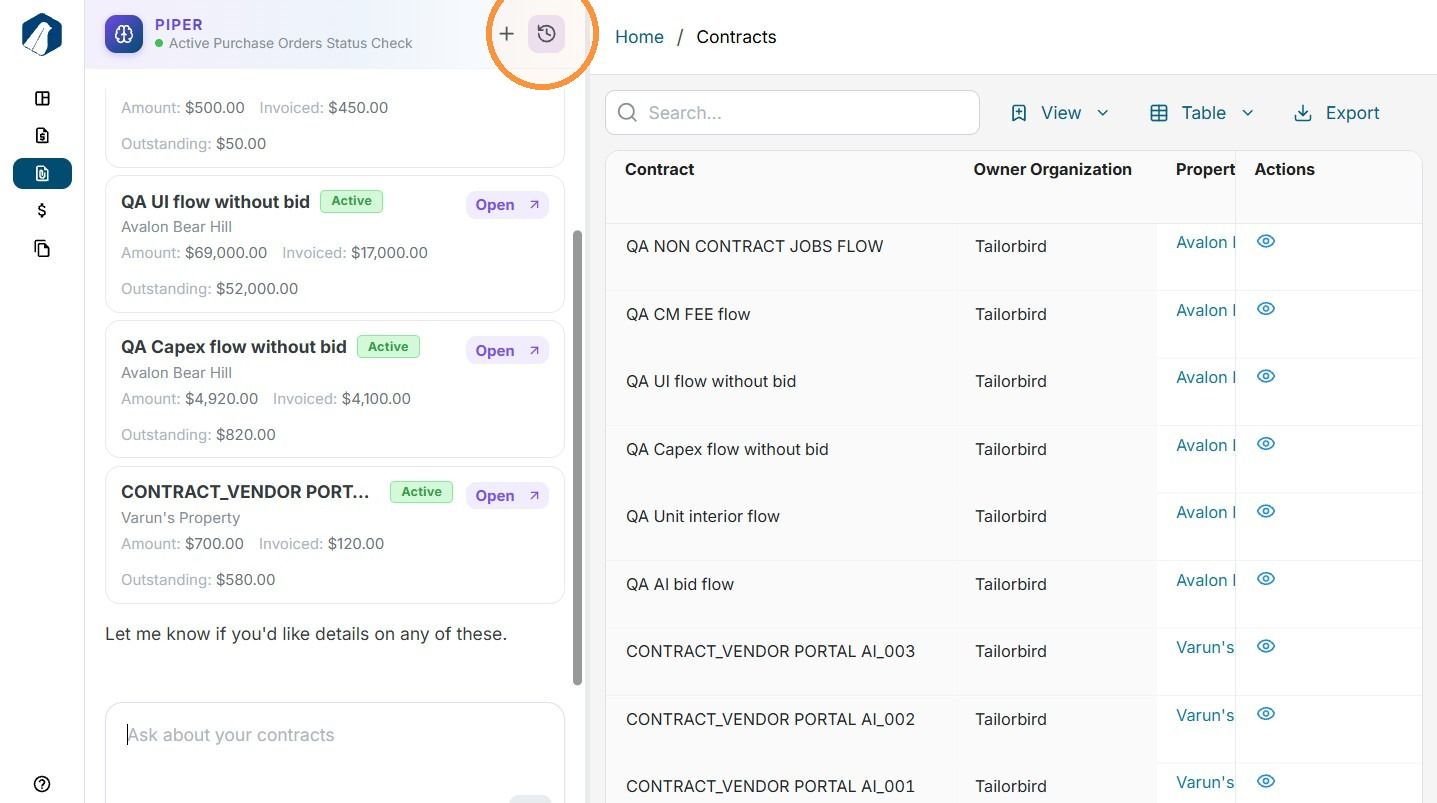
4. At the top of the chat, you’ll find the + icon to start a new chat and the History icon to view your previous conversations.
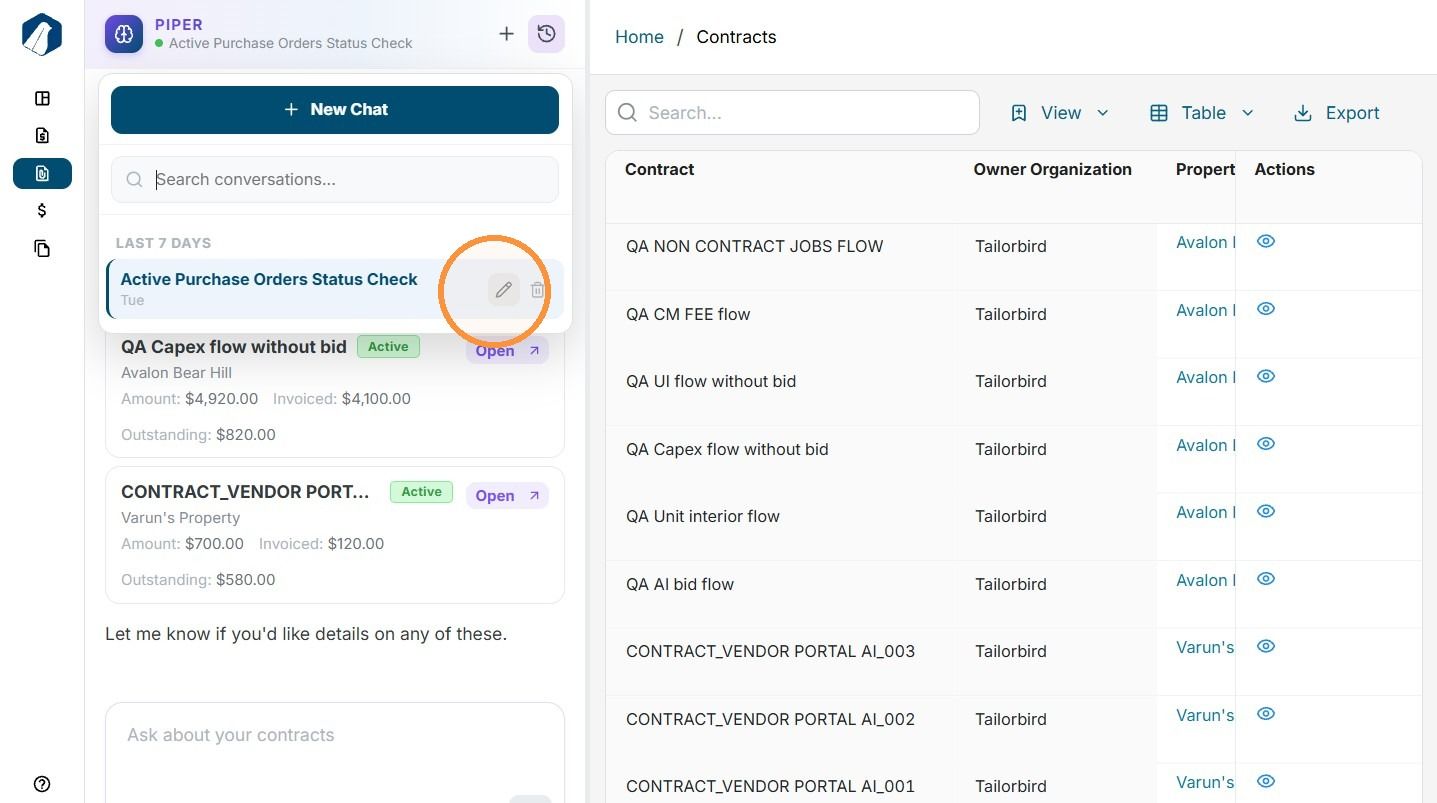
5. The History icon allows you to view the chats you’ve created and interacted with Piper.
You can scroll through your chat history to find the conversation you need or use the search field to quickly locate a specific chat.
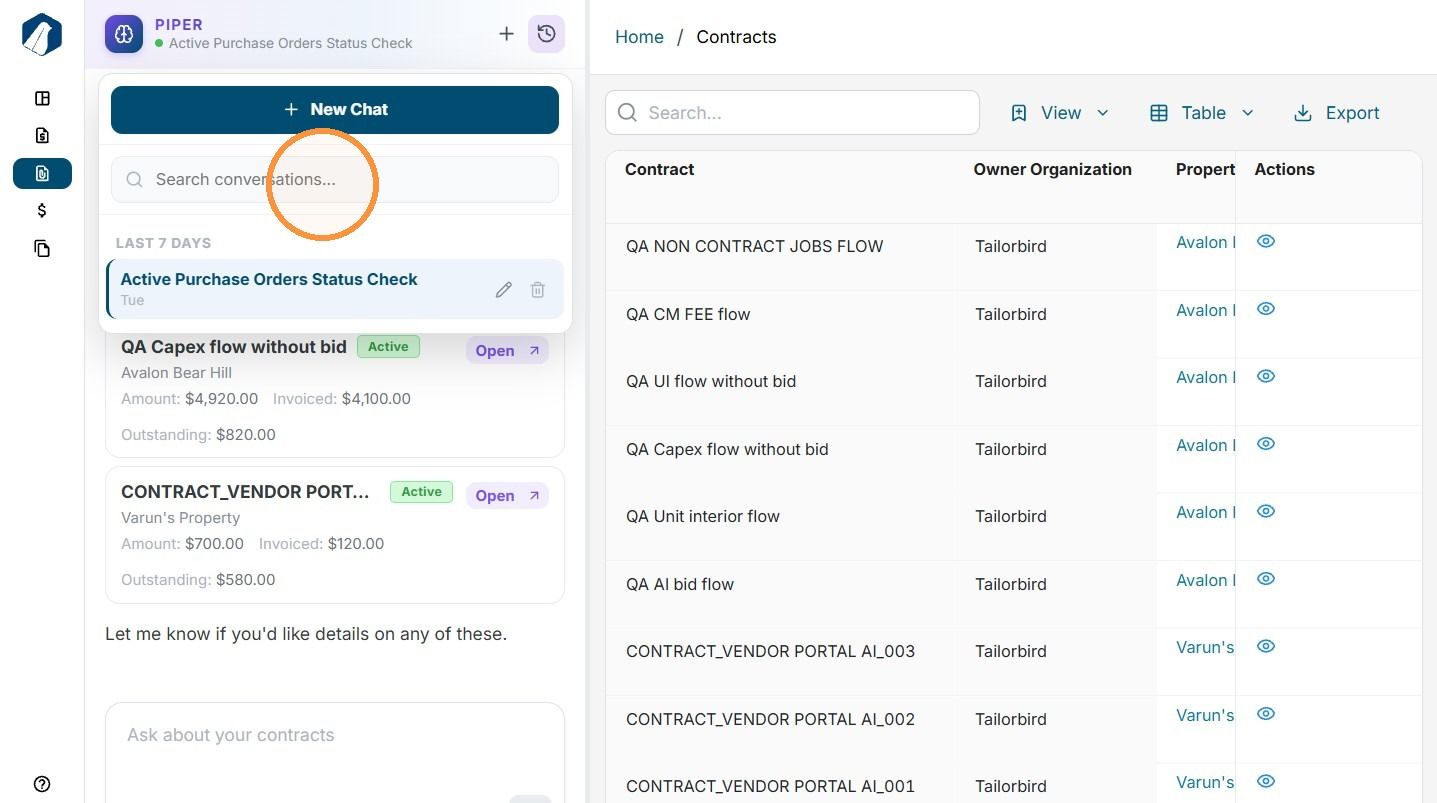
6. You can also rename your chats as needed to make them easier to identify and organize.
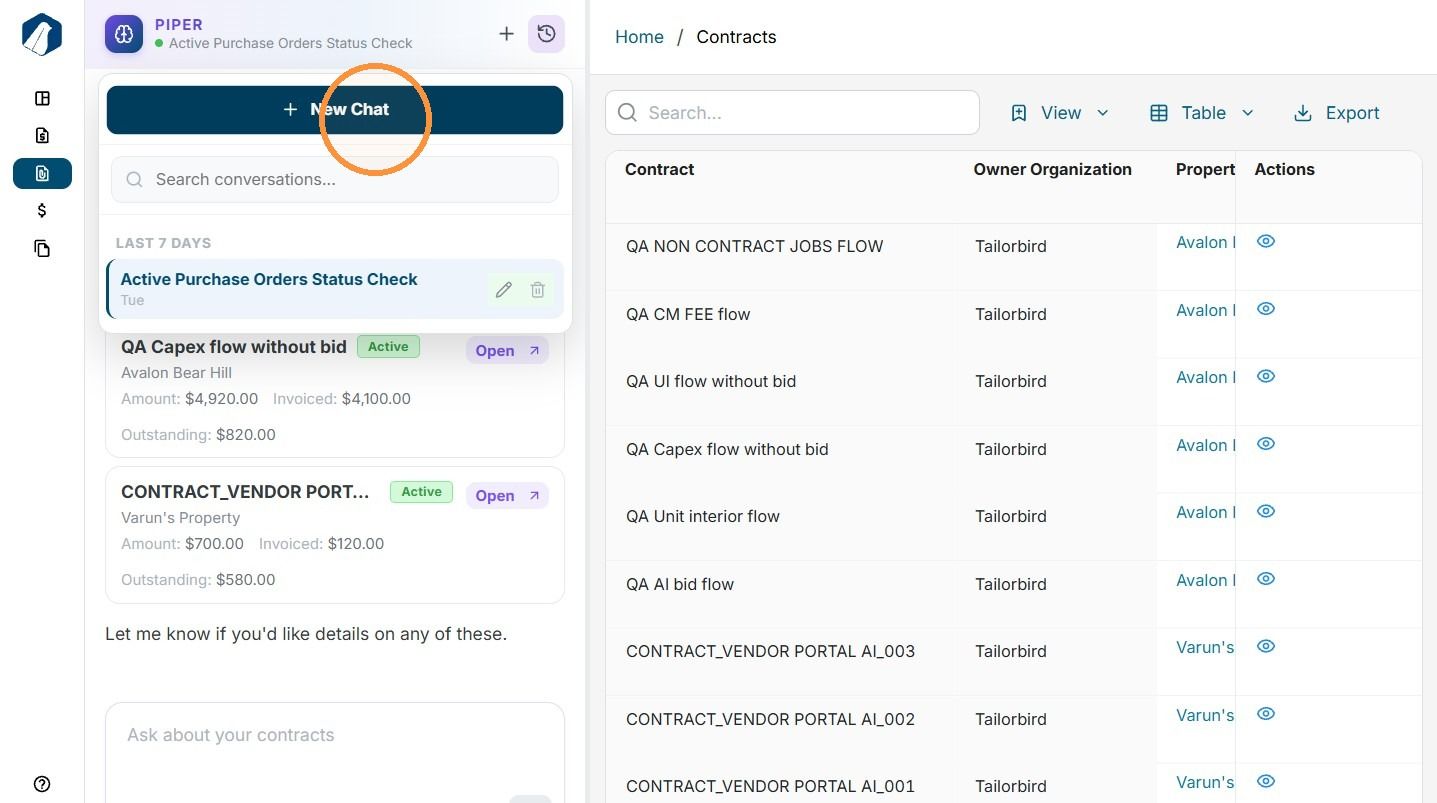
7. From here, you can also start a new chat with Piper by clicking the + New Chat.
Still need help? Ask the team