How to Accept a Bid Invitation?
This guide walks you through the process of reviewing and accepting a bid invitation within the Tailorbird platform. Follow these steps to efficiently manage your project scope and confirm your pricing submission.
Written By Susy Lozoya
Last updated 3 days ago
1. As part of our vendor database, you are eligible to receive bid opportunities from property owners for renovations, CapEx projects, unit interiors, and other property needs.
Whenever an owner creates a BidBook that matches your services, you may receive an invitation to participate and submit your proposal for the opportunity.
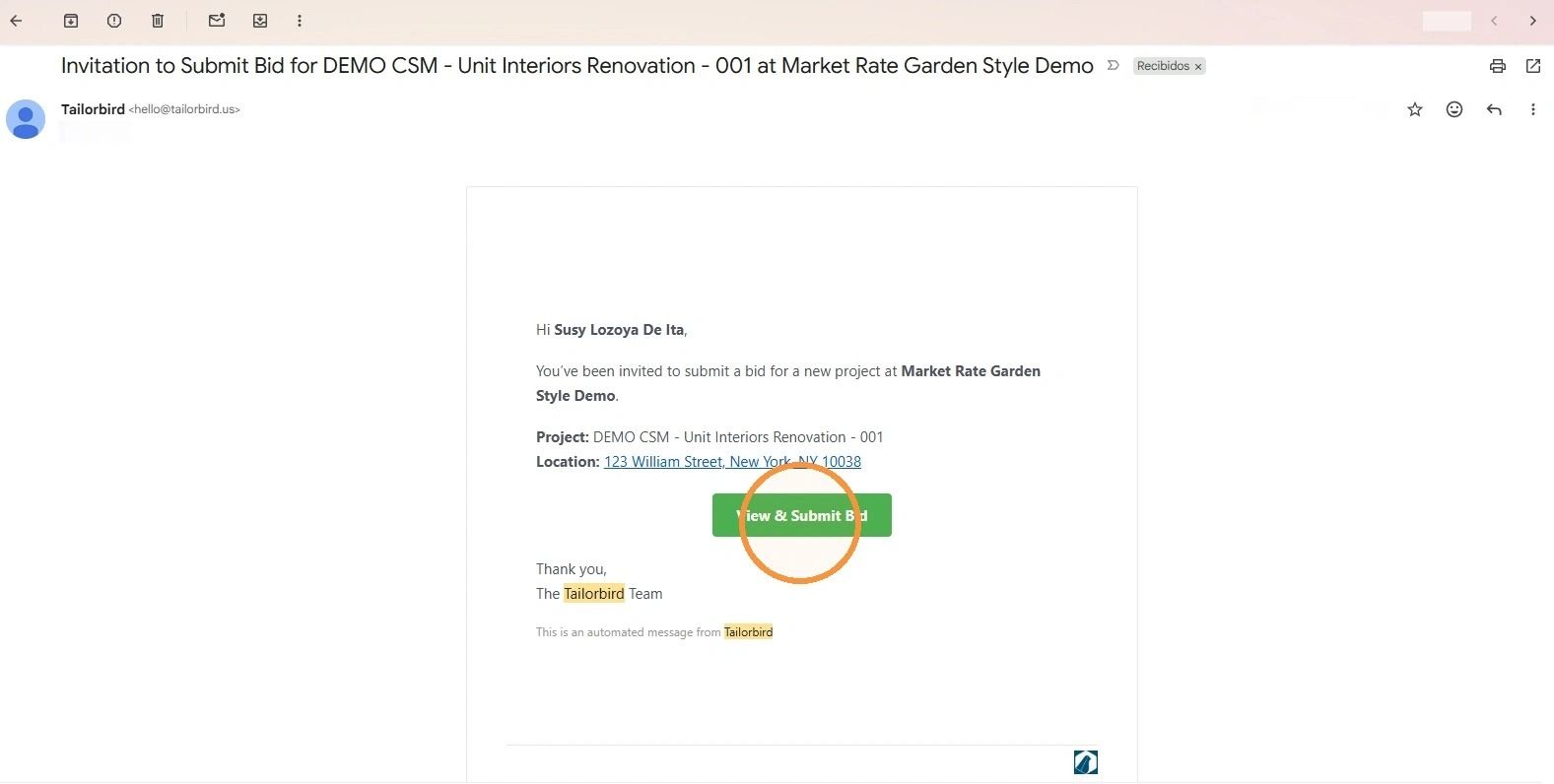
2. You’ll receive a Bid Invitation notification via email. Please make sure to check your Spam or Junk folder, as the invitation may land there in some cases.
The email will include the project details, but to review the full scope of the opportunity and submit your proposal, click “View & Submit Bid.”
3. If you haven’t signed in to the Tailorbird Portal yet, follow the next link to access the guide that will walk you through the setup process.
4. Once you’ve logged in to the Tailorbird Portal, you’ll see the Bids page, which contains all the bids you have been or will be invited to participate in.
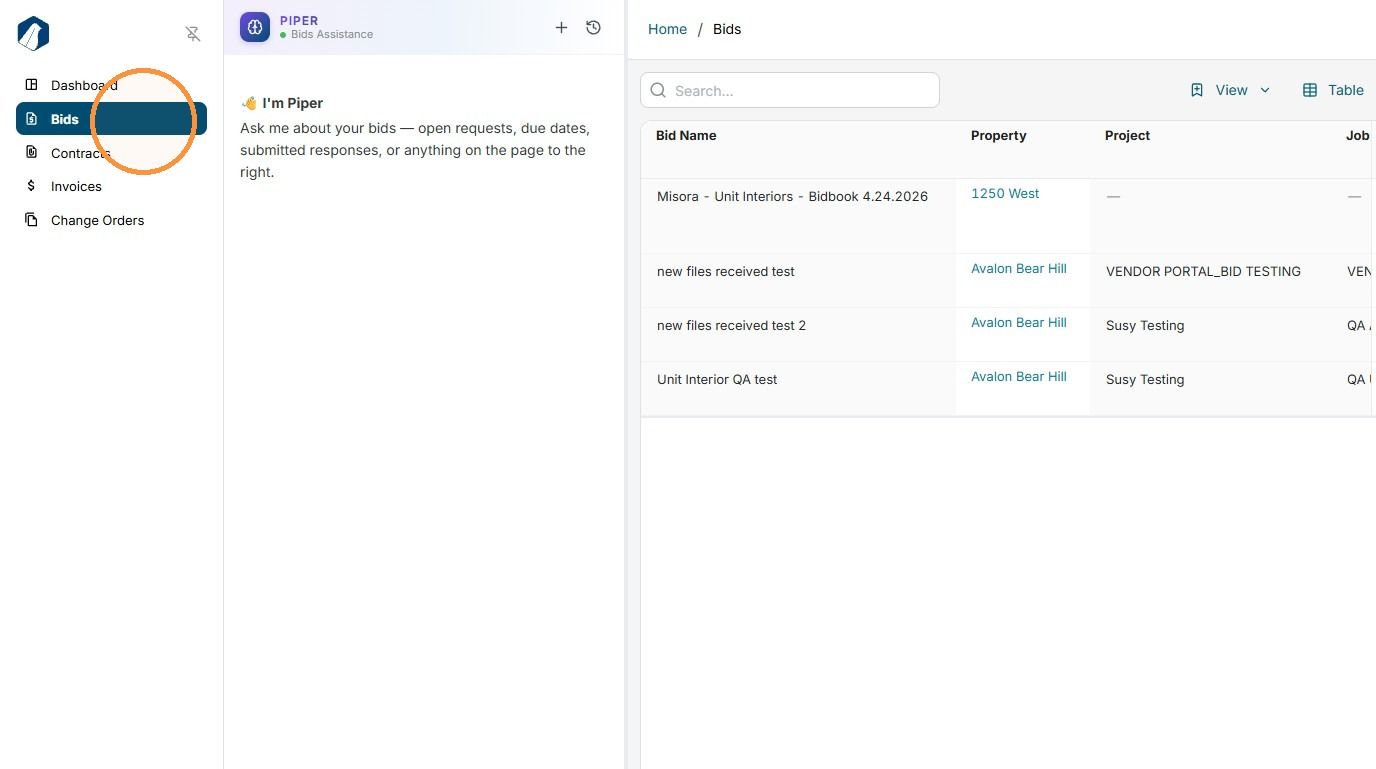
5. There are two options for locating the new bids you’ve been invited to:
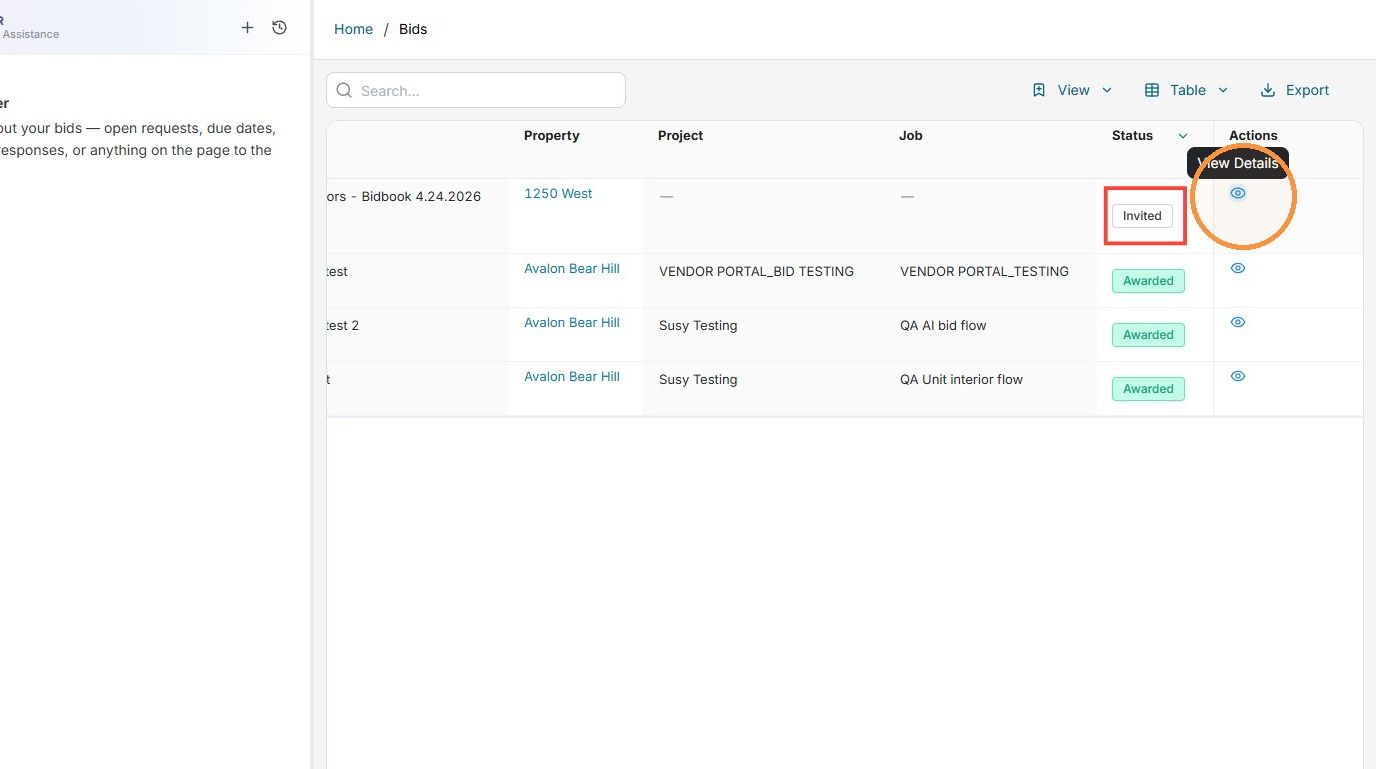
6. OPTION 1: Pay attention to the bid status and due dates. If you’ve just been invited to a bid, the status will be “Invited.”
Identify the bid by its name and, once located, click the “View Details” icon on the right side.
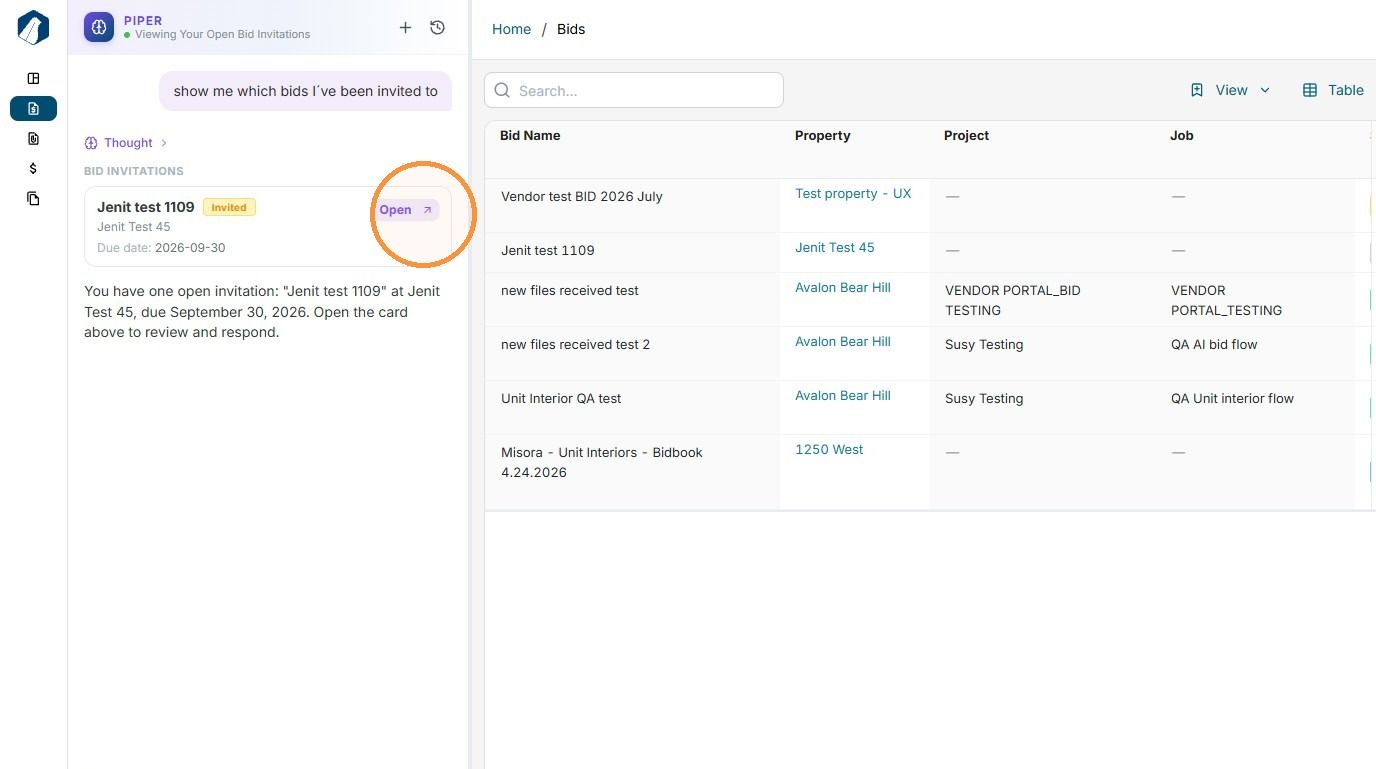
7. Option 2: You can ask Piper directly in the chat to show you the bids you’ve been invited to or provide any other information related to the current status of your bids.
Once you identify the bid you’re looking for, click Open to access it.
8. Once opened, the bid will be displayed on the right side of your screen.
In the Bid tab, you’ll be able to preview the bid directly. You can also click Download Template to save a local copy of the bid.
The main bid details will be displayed at the top, including the Bid Name, Property, Due Date, and Current Status.
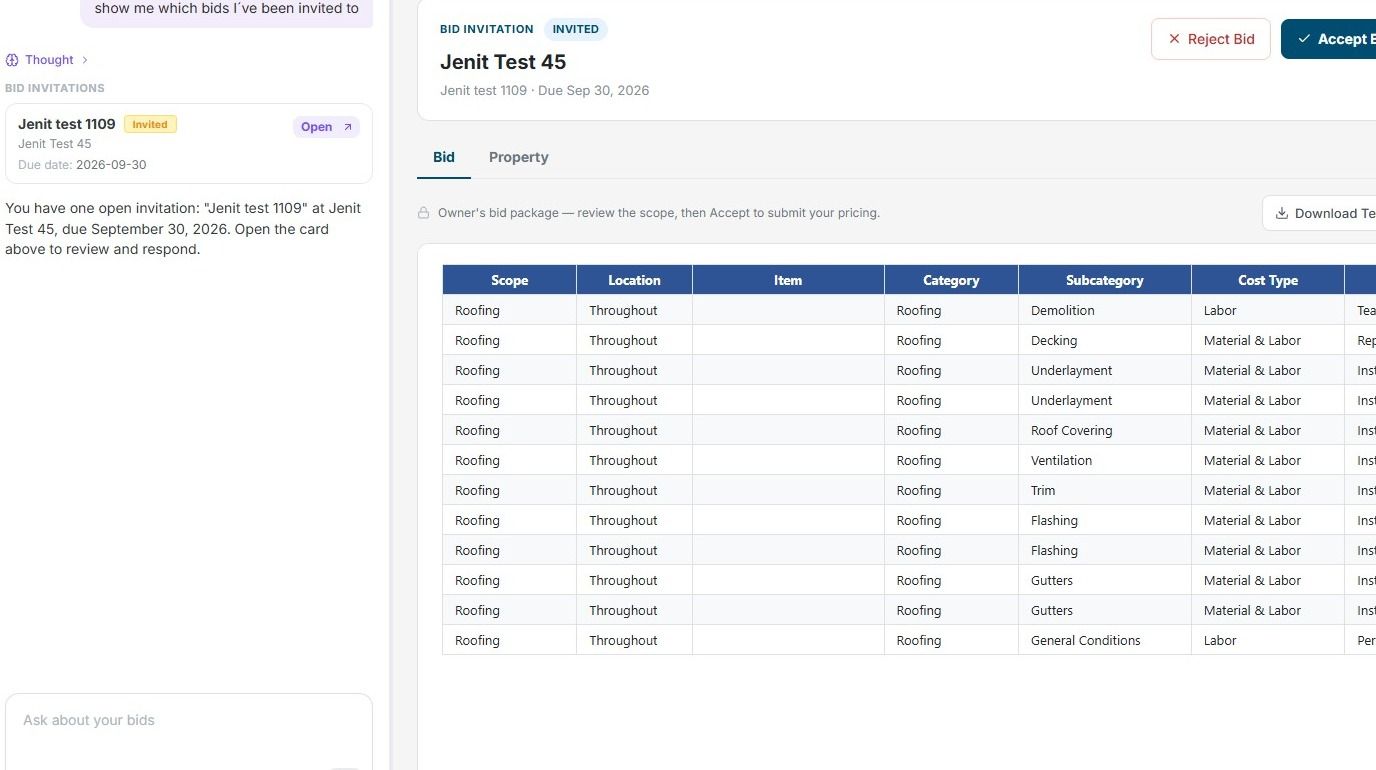
9. Before deciding whether to accept or reject the bid, you can evaluate the scope and requirements to determine whether you can submit a proposal before the EOD (end of day) on the bid due date.
Once you’ve reviewed the information and assessed your current capabilities, click “Accept” or “Reject Bid” accordingly.
If you click “Accept,” you’ll officially participate in the bid and will be able to submit your proposal.
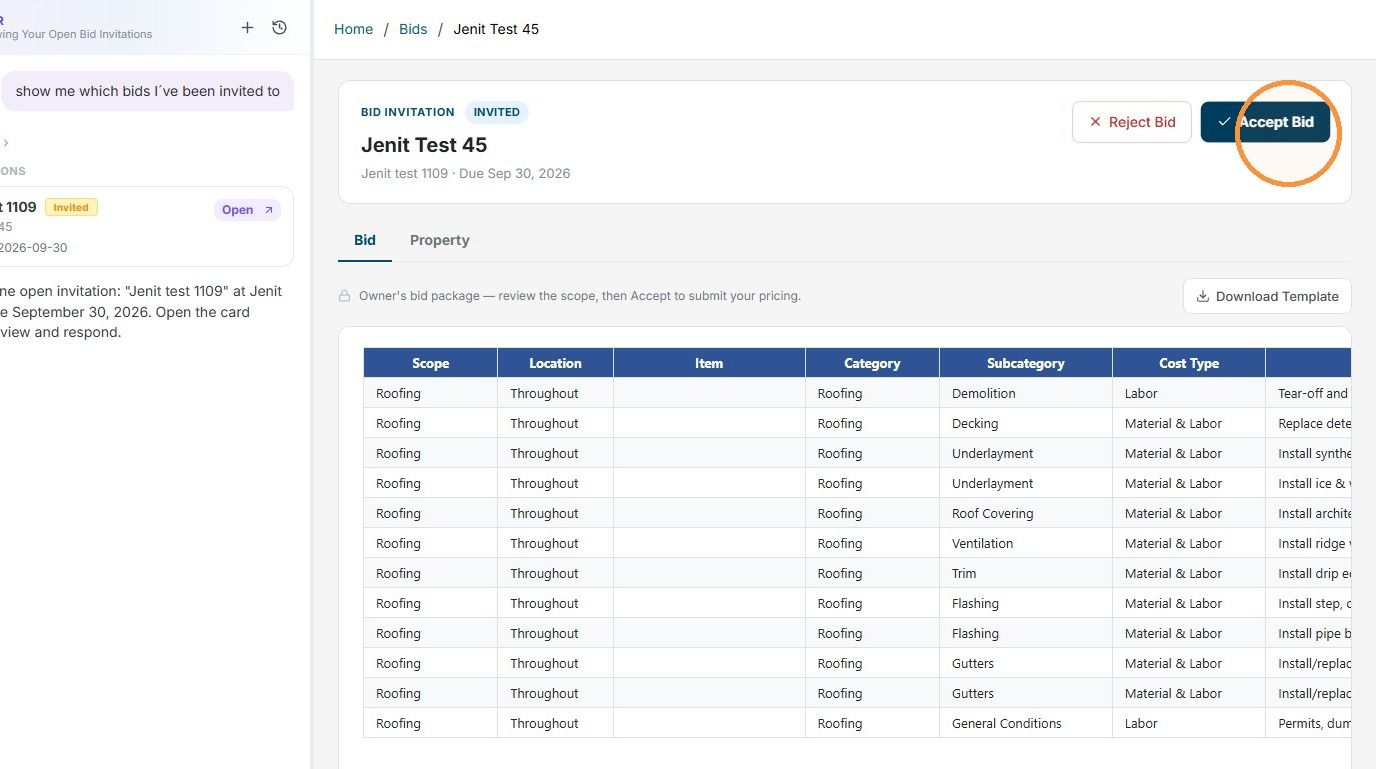
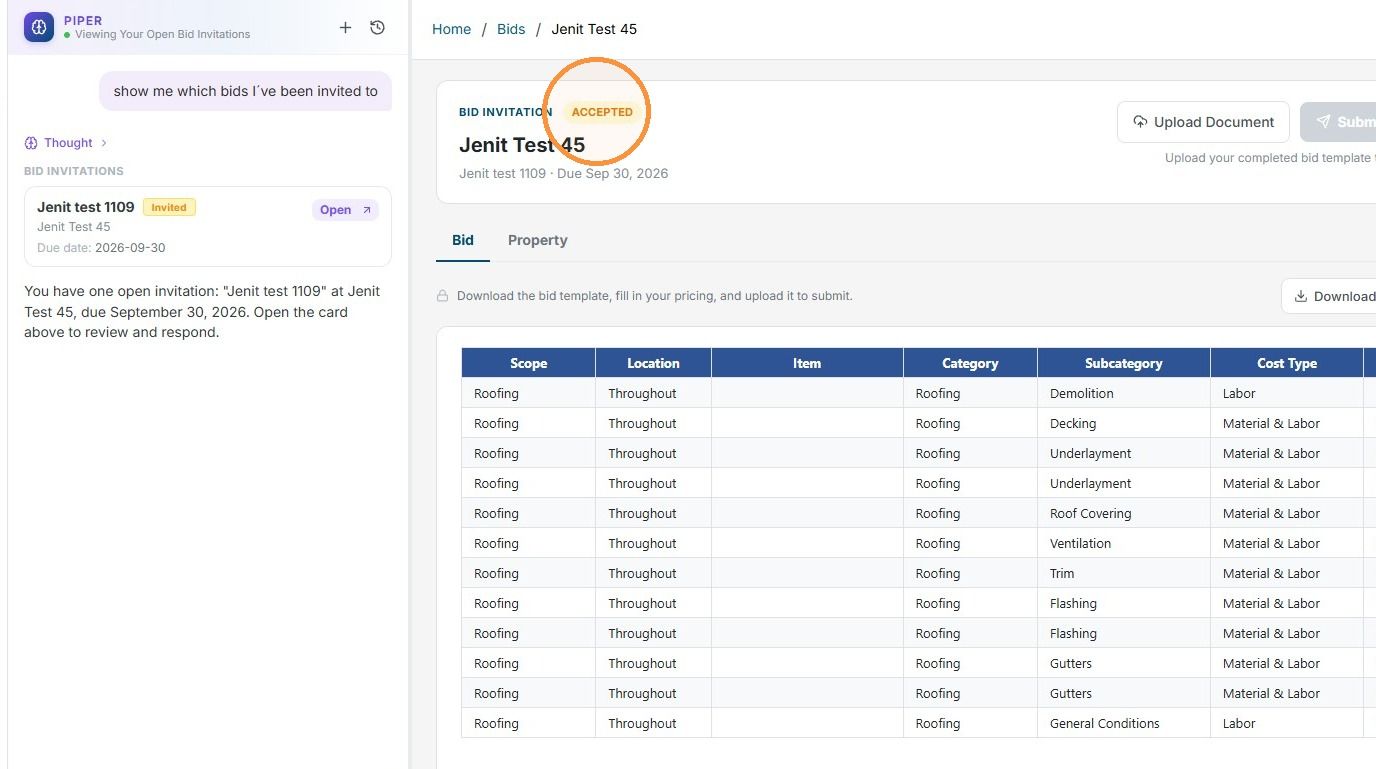
10. Once the bid is accepted, you’ll notice that the status changes to Accepted.
Still need help? Ask the team